Category: Uncategorized

  • What typing it twice really costs: a worked example

    What typing it twice really costs: a worked example

    Ask a small team how long they spend copying data between systems and the answer is almost always “not that long, maybe twenty minutes a day.” It sounds like nothing. Then you multiply it out, and twenty minutes a day turns into a part-time job that nobody was hired to do.

    This is a worked example you can redo with your own numbers. No industry statistics, no vendor claims: just arithmetic on the time your team already spends.

    The setup

    Picture a typical small business: orders come in through the website, get typed into the accounting system, and the customer details get copied into the CRM so sales can follow up. Four people touch this every day.

    4people who re-enter data
    25 mineach, per working day
    $32an hour, with payroll costs

    The $32 is a loaded rate: wages plus payroll taxes and benefits, which is what an hour of someone’s time actually costs the business. Use your own figure; it’s usually higher than people expect.

    The arithmetic

    Step Calculation Result
    Minutes a day 4 people × 25 minutes 100 min
    Hours a month 100 min × 21 working days ÷ 60 35 h
    Hours a year 35 h × 12 420 h
    Cost a year 420 h × $32 $13,440

    420 hours is about ten and a half working weeks. Every year, a quarter of a full-time person goes into retyping information that already exists somewhere else.

    Twenty-five minutes a day doesn’t feel like a cost. Ten weeks a year does.

    What the hours don’t include

    The $13,440 is only the time spent typing. The costs that usually matter more don’t show up in that number:

    • Fixing mistakes. Every manual copy is a chance for a transposed digit or a missed line. Finding and fixing those takes longer than the original entry, and some are found by customers first.
    • Slower cash. If invoices go out when someone gets round to typing them, you get paid later. That’s a cash-flow cost even when nobody is idle.
    • Decisions on stale numbers. Reports built from copies are only as current as the last time someone copied. Teams quietly stop trusting them.
    • Key-person risk. When the one person who knows the routine is out, the work stops or gets done wrong.

    These are real but hard to put a number on, so this example leaves them out. That makes everything below conservative.

    Be honest about what automation removes

    An integration rarely removes 100% of the manual work. Exceptions still need a person: an order with a typo in the address, a customer who should be merged, a refund that needs a judgement call. So compare realistic scenarios, not a fantasy.
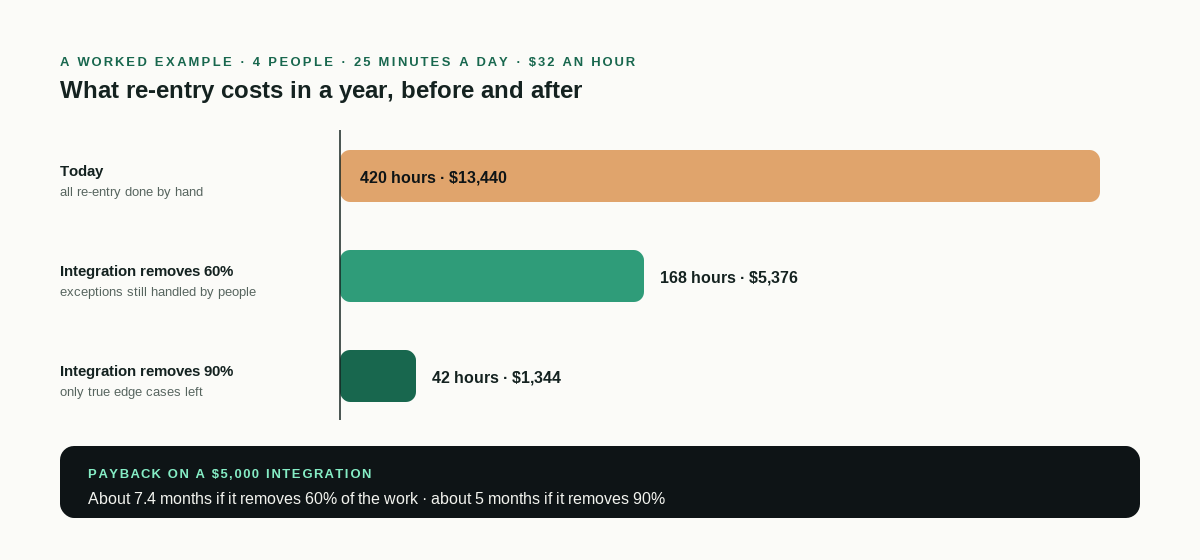
    Bar chart: today 420 hours and $13,440 a year; if an integration removes 60% of the work, 168 hours and $5,376; if it removes 90%, 42 hours and $1,344. Payback on a $5,000 integration is about 7.4 months at 60% and about 5 months at 90%.
    The same team, before and after. Even the cautious scenario pays back within the year.
    Scenario Hours left a year Saved a year Payback on $5,000
    Removes 60% of the work 168 h $8,064 ~7.4 months
    Removes 90% of the work 42 h $12,096 ~5 months

    Payback is the build cost divided by the monthly saving: $5,000 ÷ ($8,064 ÷ 12) is about 7.4 months. Add ongoing costs, like a support plan or app subscription, to the build cost before you divide.

    Run your own numbers

    The calculator on our homepage does the first half of this in your browser. Move the sliders to match your team and it shows the hours and yearly cost. Nothing is sent anywhere.

    When it doesn’t add up

    Sometimes the honest answer is “don’t build it.” If one person spends ten minutes a day, that’s about 42 hours a year: around $1,300 at the same rate. A custom integration won’t pay back. A cheap off-the-shelf app might, or a better checklist might be enough.

    The point of doing the arithmetic is to make the decision on numbers rather than frustration, in either direction.

    How to measure your own baseline

    1. For one normal week, have each person note roughly how long they spend copying information between systems each day.
    2. Note every time a mistake from re-entry had to be fixed, and how long the fix took.
    3. Use a loaded hourly rate, not the wage alone.
    4. Multiply out to a year, then compare against realistic scenarios, not 100% removal.

    One week of rough notes beats any industry average, because it’s your team and your systems.

  • Seven questions to ask before you buy an integration app

    Seven questions to ask before you buy an integration app

    Integration apps and connectors are often the right answer. They’re cheaper than custom work, they’re maintained by someone else, and for a common pairing like Shopify and QuickBooks they can be running by Friday. They’re also where a lot of quiet data damage starts, because most are judged on a demo where every record is clean and nothing ever fails.

    These seven questions get past the demo. Ask them before you buy, ideally in writing, and compare the answers to what a good answer looks like.

    1. What happens when a sync fails?

    Every integration fails sometimes: an API is down, a required field is blank, a customer was deleted. The question is whether you’ll ever know.

    Good answer Red flag
    Failed records are held with a readable reason, can be fixed and retried, and someone is alerted. “It retries automatically.” (And after the retries run out?)

    2. Which direction does each field move?

    Ask for a field list, not a feature list. For each field, which system wins if both are edited? An app that “syncs customers both ways” without saying which system owns which field will eventually overwrite someone’s fix.

    Good answer Red flag
    A documented field map you can configure, with a clear owner per field. “Everything stays in sync.”

    3. How does it match records that already exist?

    On day one, both systems already contain customers and products. If the app matches by name, you’ll get duplicates for every “Acme Inc” versus “Acme, Inc.”

    Good answer Red flag
    Matches by email or an ID you choose, shows likely duplicates for review, and stores the link once made. “It creates the customer if it doesn’t exist.”

    4. What happens to history?

    Does the app bring across past orders and invoices, or only new ones from the day you switch it on? Both can be right, but you need to know before your first month-end, not after.

    Ask for this specifically

    “If we connect on the 15th, what will our books look like for the 1st to the 14th?” The answer tells you whether you need a cut-off plan with your accountant.

    5. Where are the logs, and who can read them?

    When a number looks wrong, someone needs to trace it: which record synced, when, with what values. If only the vendor’s support team can see that, every question becomes a ticket.

    Good answer Red flag
    A searchable history per record that your own team can open. “Contact support and we’ll look into it.”

    6. What will it cost at next year’s volume?

    Many connectors charge per order, per task or per record synced. That’s fine at today’s volume and painful after a good year. Ask for the price at double your current volume, and what counts as a billable task. Retries and updates sometimes count.

    Hidden multiplier

    If an order sync also creates a customer, a payment and an item update, check whether that’s one billable task or four.

    7. How do we leave?

    Every tool gets replaced eventually. When it does, can you export the links between records, the ID mappings, so whatever comes next doesn’t have to match everything again from scratch?

    Good answer Red flag
    You can export mappings and logs, and the IDs are also stored in your own systems. The links only exist inside the app.

    When an app is the right call

    If the answers are good, buy the app. It’s usually the better choice for one common pairing of popular systems, standard data, modest volume and a team that wants something maintained for them.

    Custom work earns its keep when the answers aren’t good enough for your situation: several systems that need the same data, business rules no app supports, volume that makes per-task pricing expensive, or records that matter too much to fail silently.

  • Who owns the customer record? The decision that makes or breaks an integration

    Who owns the customer record? The decision that makes or breaks an integration

    Most integration projects start with a list of systems: the CRM, the accounting software, the online store. The ones that succeed start with a different list: every piece of data that moves, and which system is allowed to change it.

    Skip that list and you get the classic failure. Someone fixes a customer’s address in QuickBooks, the sync copies the old address back from the CRM an hour later, and the fix silently disappears. Nobody did anything wrong; the integration just had no idea who was in charge.

    “Two-way sync” is usually the wrong goal

    When people ask for a two-way sync, they usually mean “I want the same information in both places.” Building it as “any change anywhere copies everywhere” causes three predictable problems:

    • Edit ping-pong. Two people change the same field in two systems; the integration keeps copying one over the other.
    • Last write wins. Whichever change synced most recently becomes the truth, even if it was the wrong one.
    • Silent loss. Nothing errors, so nobody notices until a customer gets an invoice at an old address.

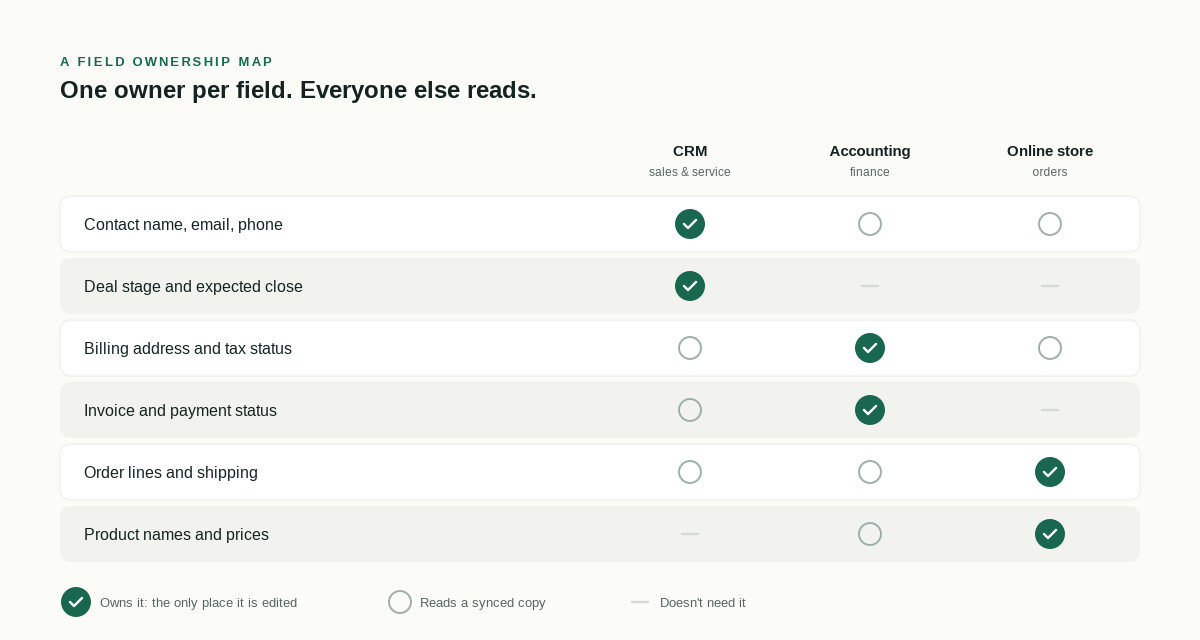
    The fix isn’t a smarter sync. It’s a rule: every field has exactly one owner. The owner is the only place that field is edited. Every other system reads a copy.

    A matrix of six fields against three systems. The CRM owns contact details and deal stage; accounting owns billing address, tax status, invoice and payment status; the online store owns order lines, shipping, product names and prices. Other systems read copies.
    An example ownership map. Your rows will differ; the rule that each row has exactly one owner shouldn’t.

    Own fields, not whole records

    It’s tempting to say “the CRM owns the customer.” In practice a customer record is a bundle of fields with different natural owners. Sales updates the phone number. Finance updates the billing address and tax exemption. The store knows what they ordered. Ownership works best field by field, which is what lets the same customer be edited by three teams without anyone overwriting anyone.

    How to decide who owns a field

    Three questions settle almost every case:

    1. Where is it created? The system where a field is first entered is usually the right owner.
    2. Who is accountable when it’s wrong? If finance gets the call about a wrong tax status, finance’s system owns it.
    3. Is there a record that must stay authoritative? Invoices and payments belong to accounting, because that’s the record your accountant and the tax authorities rely on.
    When two teams both want to own it

    Pick one owner and make the field read-only in the other system. If the other team genuinely needs to change it, give them a way to request the change in the owning system, not a second copy they can edit.

    The other half: stable IDs

    Ownership tells the integration who’s in charge. IDs tell it which record it’s talking about. Matching on names or email addresses breaks the moment someone marries, changes jobs or fixes a typo.

    • When a record is first linked, store each system’s ID on the other side: the QuickBooks customer ID on the CRM account, and the CRM account ID on the QuickBooks customer.
    • From then on, every sync matches by those IDs, never by name.
    • Name and email matching is only for the first link, and anything ambiguous goes to a person to confirm.

    Plan for conflicts anyway

    Even with clear ownership, conflicts happen: someone edits a read-only copy through an import, or two records turn out to be the same customer. Decide in advance:

    • What happens when a non-owner changes an owned field? (Usually: the owner’s value wins on the next sync, and the change is logged.)
    • How are duplicates merged, and in which system first?
    • Who gets told, and where do they see it?

    A worksheet you can copy

    Before any integration is built, fill in one row per field that moves. If you can’t fill in the “owner” column, you’re not ready to build yet.

    Field Owner Copied to How fast On conflict
    Contact email CRM Accounting, store Within minutes CRM wins, change logged
    Billing address Accounting CRM Within minutes Accounting wins
    Invoice status Accounting CRM Hourly Read-only in CRM
    Order lines Store Accounting Daily summary Never edited downstream

    This single page prevents more integration bugs than any amount of code review, because it turns “keep them in sync” into rules a developer can actually build and a person can actually check.

  • Webhooks, polling or a nightly sync? How to choose how your systems talk

    Webhooks, polling or a nightly sync? How to choose how your systems talk

    Every integration answers one question before it answers anything else: when something changes in one system, how does the other system find out? There are three common answers, and most broken integrations picked the wrong one, or picked only one when they needed two.

    Here they are in plain English, with when each one fits and what goes wrong with it.

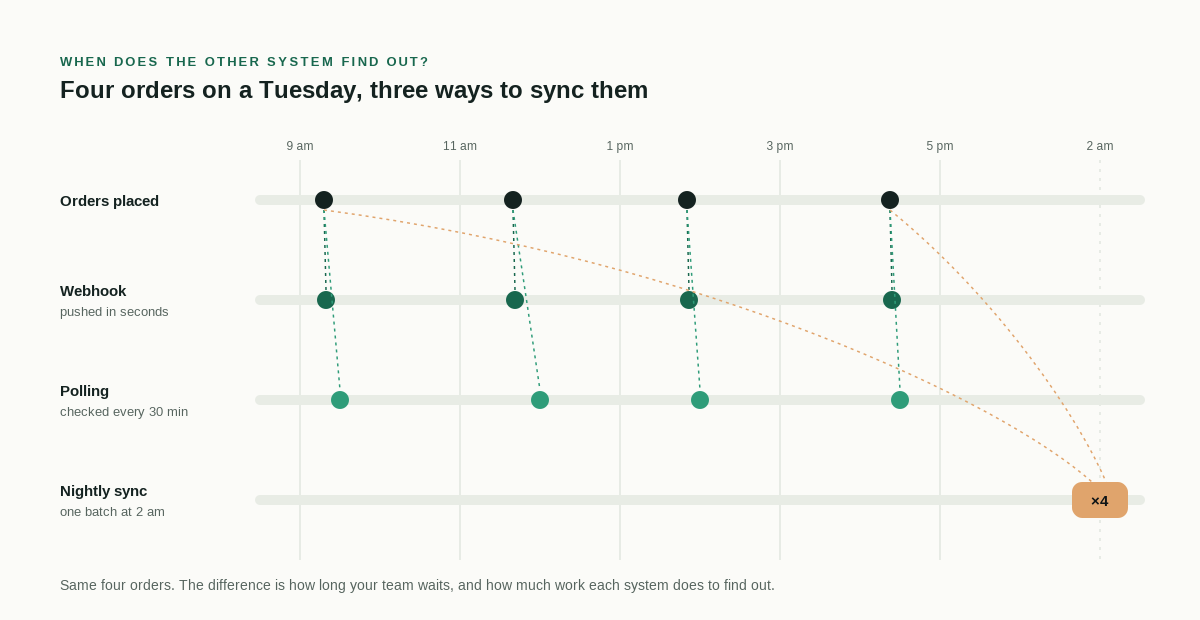
    Timeline diagram: four orders placed between 9 am and 5 pm. Webhooks deliver each within seconds, polling every 30 minutes delivers each at the next check, and a nightly sync delivers all four at 2 am.
    The same four orders, three ways to sync them. The difference is how long the other system waits, and how much work it does to find out.

    Webhooks: the doorbell

    With a webhook, the system where something happened tells the other system, within seconds. Shopify, Stripe, QuickBooks Online and most modern tools can send one when an order is placed, a payment clears or a record changes.

    • Strengths: close to real time, and no wasted work checking for changes that didn’t happen.
    • Weaknesses: the receiving end has to be online to answer the door, and providers don’t promise every message arrives exactly once, or in order.
    The detail most builds miss

    Webhook providers retry when they don’t get a quick reply, which means the same event can arrive twice. Every handler must be idempotent: processing the same event a second time has to change nothing. Otherwise a retry creates a duplicate invoice or charges a fee twice.

    Polling: checking the mailbox

    With polling, your integration asks the other system on a schedule: “anything new since 2:30?” It’s what you use when a system doesn’t send webhooks, or doesn’t send them for the record you care about.

    • Strengths: simple, predictable, and nothing is lost if your side was offline for a while; the next check catches up.
    • Weaknesses: there’s always a delay, and frequent polling eats into API rate limits even when nothing has changed.

    Good polling remembers a cursor, usually the last “modified at” timestamp it saw, and asks only for records changed since then. Bad polling downloads everything every time and slowly gets throttled.

    Nightly sync: the weekly delivery

    A batch job runs once, usually overnight, and moves everything that changed that day in one go. Many accounting and reporting connections should work this way.

    • Strengths: the simplest to build and run, gentle on API limits, and easy to rerun if something goes wrong.
    • Weaknesses: nobody sees today’s changes until tomorrow, and one bad record can hold up a whole batch if errors aren’t handled per record.

    Side by side

    Webhook Polling Nightly sync
    How fast Seconds Minutes, set by you Next morning
    Load on the API Low Medium to high Low, in one burst
    If your side is down Retries, then lost Catches up next run Rerun the batch
    Main risk Duplicates and missed events Rate limits Stale data
    Good for Orders, payments, new leads Systems without webhooks Accounting, reporting, bulk updates

    The answer is usually two of them

    The integrations that hold up in practice combine a fast path with a safety net: webhooks for speed, plus a scheduled sweep that catches anything the webhooks missed.

    1. Webhooks handle the normal case within seconds.
    2. Every few hours, or nightly, a sweep asks “what changed since the last sweep?” and fills any gaps.
    3. Because both paths are idempotent, an event that arrives through both changes nothing the second time.

    That design survives the realities of production: a webhook endpoint that was down during a deploy, a provider outage, a message that arrived out of order.

    How to decide quickly

    Ask one question per record type: how long can a person wait before a stale copy causes a real problem? Seconds means webhooks plus a sweep. An hour means polling. Tomorrow is fine means a nightly sync.

    Questions to ask about any existing integration

    • If the receiving system is down for an hour, what happens to the changes made during that hour?
    • If the same event arrives twice, do you get two records?
    • Where can a person see what synced, what failed and why?
    • How close are you to the API’s rate limits on your busiest day?

    If nobody can answer these, the integration works until the day it doesn’t, and nobody will know which records went missing.

  • Shopify to QuickBooks: post every order, or a daily summary?

    Shopify to QuickBooks: post every order, or a daily summary?

    The first question in any Shopify and QuickBooks connection isn’t technical. It’s this: when an order comes in, what should your books see?

    There are two good answers, and picking the wrong one for your store is how books end up either unreadable or missing detail you needed. The choice also decides how much can break, how long month-end takes, and what your accountant charges to tidy it.

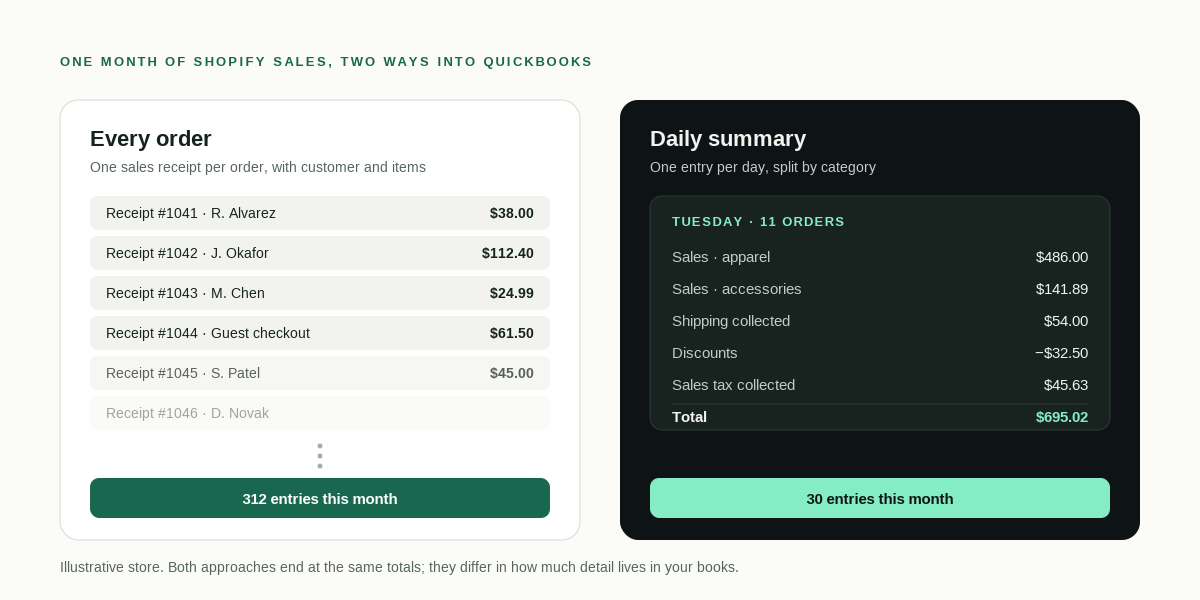
    Diagram comparing two approaches for the same month: posting every order creates 312 sales receipts; posting a daily summary creates 30 entries split by category.
    The same month of sales. Both end at the same totals; they differ in how much detail lives in your books.

    Option 1: every order, one by one

    Each Shopify order becomes its own sales receipt in QuickBooks, with the customer, the line items and the tax.

    • Good for: lower-volume stores, wholesale or B2B orders, and anyone who needs to look up a specific customer’s purchase inside their accounting.
    • Watch out for: a customer list swelling with one-time buyers, thousands of small transactions to review, and more individual records that can fail to sync.

    Option 2: a daily summary

    Each day’s orders are added up into one entry, split the way your accountant thinks: sales by product category, shipping, discounts and sales tax.

    • Good for: busy stores, lots of small orders, and accountants who want a ledger they can actually read.
    • Watch out for: you won’t see individual orders in QuickBooks. Shopify stays the place to look them up, which is usually fine.

    How to choose

    Question Every order Daily summary
    Entries a month One per order About 30
    Customer list in QuickBooks Every buyer One “Shopify sales” customer
    Look up one order in your books Yes No, use Shopify
    Things that can fail to sync Every order One entry a day
    Best for B2B, low volume, invoicing customers Retail, high volume, simple books
    A useful rule of thumb

    Ask your bookkeeper when they last looked up an individual online order inside QuickBooks. If the answer is “never”, post a daily summary.

    Either way, payouts are their own problem

    Whichever you choose, the money doesn’t arrive order by order. Shopify Payments pays out in batches, minus its fees and any refunds, exactly like Stripe. The tidy way to handle it is a clearing account:

    1. Sales, whether per order or daily, are recorded as paid into a “Shopify Clearing” account.
    2. Fees come out of Shopify Clearing into an expense account.
    3. Refunds come out of Shopify Clearing against the original sale.
    4. Each payout is a transfer from Shopify Clearing to the bank, and it matches your bank feed to the cent.

    If you also take PayPal or other gateways, each one gets its own clearing account so they can be reconciled separately.

    Three decisions worth making up front

    Sales tax

    Shopify can calculate tax at checkout; QuickBooks can calculate it too. Pick one to calculate and let the other just record, otherwise tax gets counted twice and your liability report is wrong.

    Refunds and returns

    Full refunds are easy. Partial refunds, exchanges, restocking fees and refunds to store credit each need a written rule, or they turn into month-end mysteries.

    Who owns products and stock

    If QuickBooks tracks inventory, stock levels should flow from QuickBooks to Shopify, never both ways. Two systems editing the same number is how you sell things you don’t have.

    Before you switch methods

    Changing from per-order to daily summary mid-year is fine, but pick a clean cut-off date and agree it with your accountant first, so no day is posted twice or not at all.

    App or custom?

    For a single store with standard tax and fees, an existing Shopify-to-QuickBooks app is often enough, and it’s cheaper. Custom work earns its keep when you run several stores, have unusual tax or fee rules, or need a third system, like a CRM or warehouse, to see the same data.

  • Why your Stripe deposits never match your invoices (and how to fix it for good)

    Why your Stripe deposits never match your invoices (and how to fix it for good)

    If you take payments through Stripe and keep your books in QuickBooks, you’ve stared at a deposit that matches nothing. The invoices say one thing, the bank says another, and somebody loses a Friday afternoon to a spreadsheet trying to make them agree.

    Nothing is broken. Stripe simply doesn’t pay you the way your invoices expect, and once you see what’s inside a payout, the fix is surprisingly mechanical.

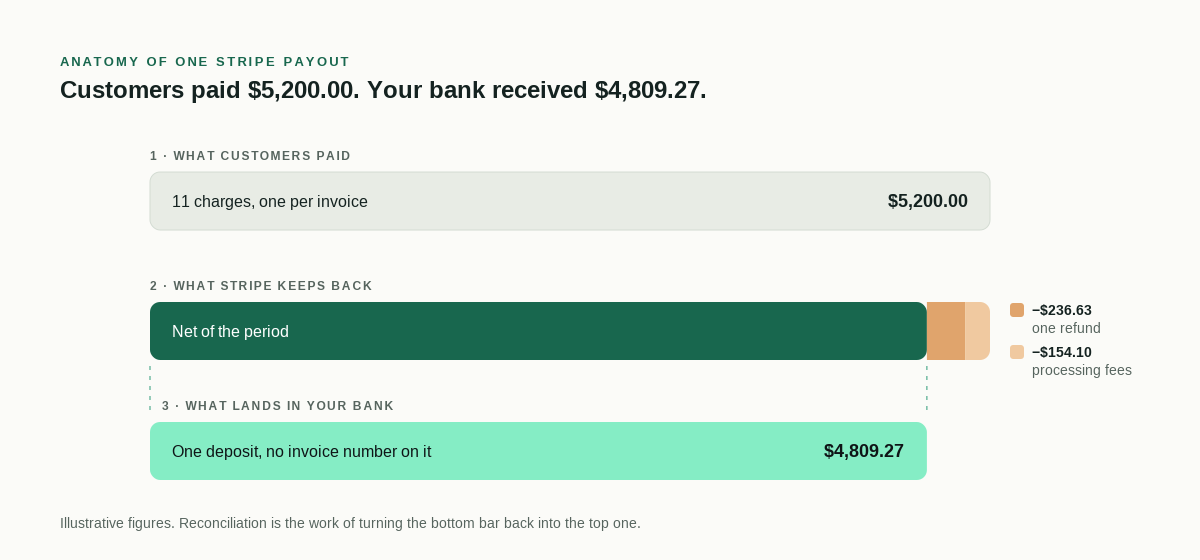
    Diagram: customers paid $5,200.00 across 11 charges; Stripe holds back a $236.63 refund and $154.10 in fees; the bank receives one deposit of $4,809.27.
    One payout, three numbers. Your invoices live in the top bar; your bank only ever sees the bottom one.

    What is actually inside a payout

    Stripe collects card payments for a few days, then sends them to your bank as a single transfer. Before it does, it nets out everything that happened in the meantime:

    • Processing fees on every charge, deducted at the time of the charge.
    • Refunds you issued during the period, even for sales made weeks earlier.
    • Disputes, which pull the disputed amount plus a dispute fee.
    • Adjustments, like a dispute you won being paid back, or currency conversion.

    Here is the payout in the diagram, written as a ledger:

    Line What it is Amount
    Charges 11 card payments against 11 invoices $5,200.00
    Refund Order #1038, from the previous week −$236.63
    Fees Processing fees on the 11 charges −$154.10
    Payout One deposit to your bank $4,809.27

    None of the eleven invoices says $4,809.27. That’s the whole problem in one line.

    Your bank sees a net number. Your invoices are gross numbers. Reconciliation is the work of putting the gross back together.

    Why the spreadsheet fix keeps breaking

    The usual workaround is to download Stripe’s payout report, tick off each charge against an invoice, and book the fees as one lump. It works on a quiet week. It falls apart when:

    • A refund lands in a different payout from the sale it reverses.
    • A customer pays two invoices in one charge, or one invoice in two.
    • A dispute shows up a month later and quietly shrinks a payout.
    • The one person who knows the routine is on holiday at month-end.
    Watch for this

    If you record each Stripe deposit as “sales” in QuickBooks, your revenue is understated by every fee and refund, and your invoices stay open forever. Both problems compound quietly until year-end.

    The clearing account method

    Accountants solve this with a clearing account: a holding account in QuickBooks, often called “Stripe Clearing”, that stands in for the money sitting at Stripe. Every movement goes through it:

    1. A charge is paid. The invoice is marked paid, and the money goes into Stripe Clearing, not the bank.
    2. Stripe takes a fee. The fee comes out of Stripe Clearing into a merchant fees expense account.
    3. A refund is issued. A refund receipt or credit comes out of Stripe Clearing against the original sale.
    4. The payout lands. A transfer moves $4,809.27 from Stripe Clearing to your bank, and it matches the bank feed exactly.

    When everything is booked, Stripe Clearing’s balance should equal the balance Stripe shows in its dashboard. If it doesn’t, the difference points straight at the missing transaction.

    A quick health check

    Compare your Stripe Clearing balance with Stripe’s available plus pending balance on the last day of the month. If they agree, your books are reconciled. If they don’t, you know exactly where to look.

    What a proper connection automates

    A Stripe-to-QuickBooks connection does those four steps the same way every time, at the moment they happen:

    • Each charge finds its invoice by an ID both systems store, not by matching amounts.
    • Fees are posted per charge, so the fees report is exact rather than estimated.
    • Refunds and disputes are recorded against the original sale, whichever payout they land in.
    • Each payout is posted as a transfer, so the bank feed matches without anyone touching it.
    • Anything that can’t be matched, like a charge with no invoice, is held with a reason for a person to decide.

    Questions to answer before you build

    • Do invoices start in QuickBooks, in Stripe, or in your own app?
    • Do you sell subscriptions, one-time payments, or both?
    • Which expense account should Stripe fees go to?
    • Who reviews the transactions that can’t be matched automatically, and how quickly?

    Sometimes an existing connector handles these well enough, and that’s the cheaper route. When it doesn’t, the connection is built directly on Stripe’s and QuickBooks’ APIs.