
The first question in any Shopify and QuickBooks connection isn’t technical. It’s this: when an order comes in, what should your books see?
There are two good answers, and picking the wrong one for your store is how books end up either unreadable or missing detail you needed. The choice also decides how much can break, how long month-end takes, and what your accountant charges to tidy it.
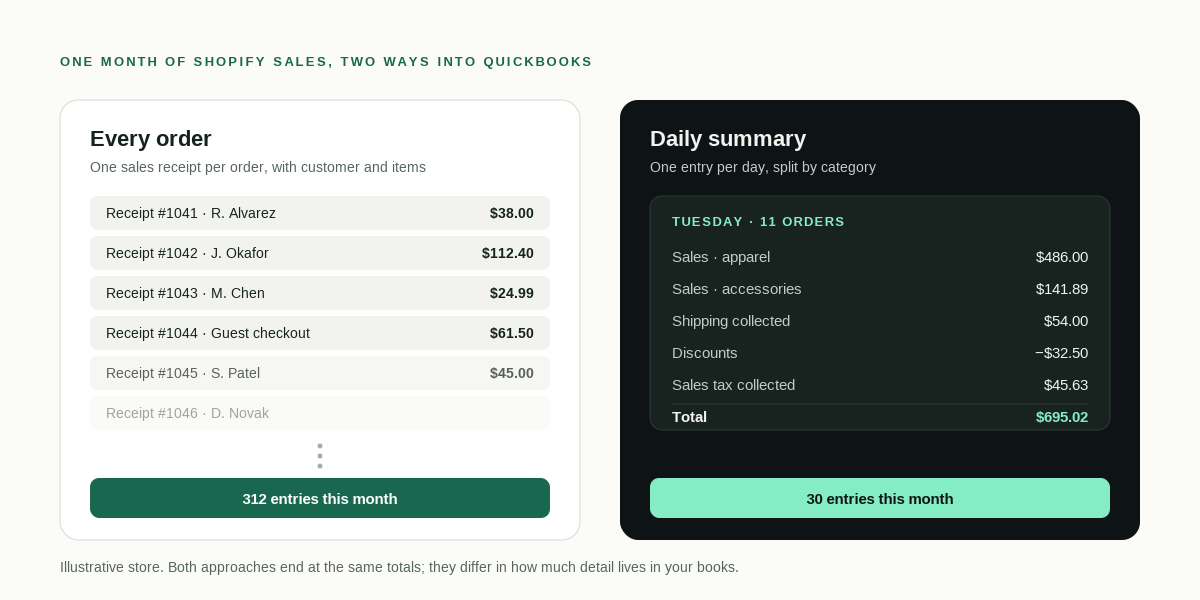
Option 1: every order, one by one
Each Shopify order becomes its own sales receipt in QuickBooks, with the customer, the line items and the tax.
- Good for: lower-volume stores, wholesale or B2B orders, and anyone who needs to look up a specific customer’s purchase inside their accounting.
- Watch out for: a customer list swelling with one-time buyers, thousands of small transactions to review, and more individual records that can fail to sync.
Option 2: a daily summary
Each day’s orders are added up into one entry, split the way your accountant thinks: sales by product category, shipping, discounts and sales tax.
- Good for: busy stores, lots of small orders, and accountants who want a ledger they can actually read.
- Watch out for: you won’t see individual orders in QuickBooks. Shopify stays the place to look them up, which is usually fine.
How to choose
| Question | Every order | Daily summary |
|---|---|---|
| Entries a month | One per order | About 30 |
| Customer list in QuickBooks | Every buyer | One “Shopify sales” customer |
| Look up one order in your books | Yes | No, use Shopify |
| Things that can fail to sync | Every order | One entry a day |
| Best for | B2B, low volume, invoicing customers | Retail, high volume, simple books |
Ask your bookkeeper when they last looked up an individual online order inside QuickBooks. If the answer is “never”, post a daily summary.
Either way, payouts are their own problem
Whichever you choose, the money doesn’t arrive order by order. Shopify Payments pays out in batches, minus its fees and any refunds, exactly like Stripe. The tidy way to handle it is a clearing account:
- Sales, whether per order or daily, are recorded as paid into a “Shopify Clearing” account.
- Fees come out of Shopify Clearing into an expense account.
- Refunds come out of Shopify Clearing against the original sale.
- Each payout is a transfer from Shopify Clearing to the bank, and it matches your bank feed to the cent.
If you also take PayPal or other gateways, each one gets its own clearing account so they can be reconciled separately.
Three decisions worth making up front
Sales tax
Shopify can calculate tax at checkout; QuickBooks can calculate it too. Pick one to calculate and let the other just record, otherwise tax gets counted twice and your liability report is wrong.
Refunds and returns
Full refunds are easy. Partial refunds, exchanges, restocking fees and refunds to store credit each need a written rule, or they turn into month-end mysteries.
Who owns products and stock
If QuickBooks tracks inventory, stock levels should flow from QuickBooks to Shopify, never both ways. Two systems editing the same number is how you sell things you don’t have.
Changing from per-order to daily summary mid-year is fine, but pick a clean cut-off date and agree it with your accountant first, so no day is posted twice or not at all.
App or custom?
For a single store with standard tax and fees, an existing Shopify-to-QuickBooks app is often enough, and it’s cheaper. Custom work earns its keep when you run several stores, have unusual tax or fee rules, or need a third system, like a CRM or warehouse, to see the same data.